Create a QR code for requesting reviews on your Google Business Profile 📍
Learn how to easily generate a QR code for your Google Business Profile review requests with this step-by-step guide. Simplify the review process for your customers, boost your business’s online presence, and gather valuable feedback effortlessly.
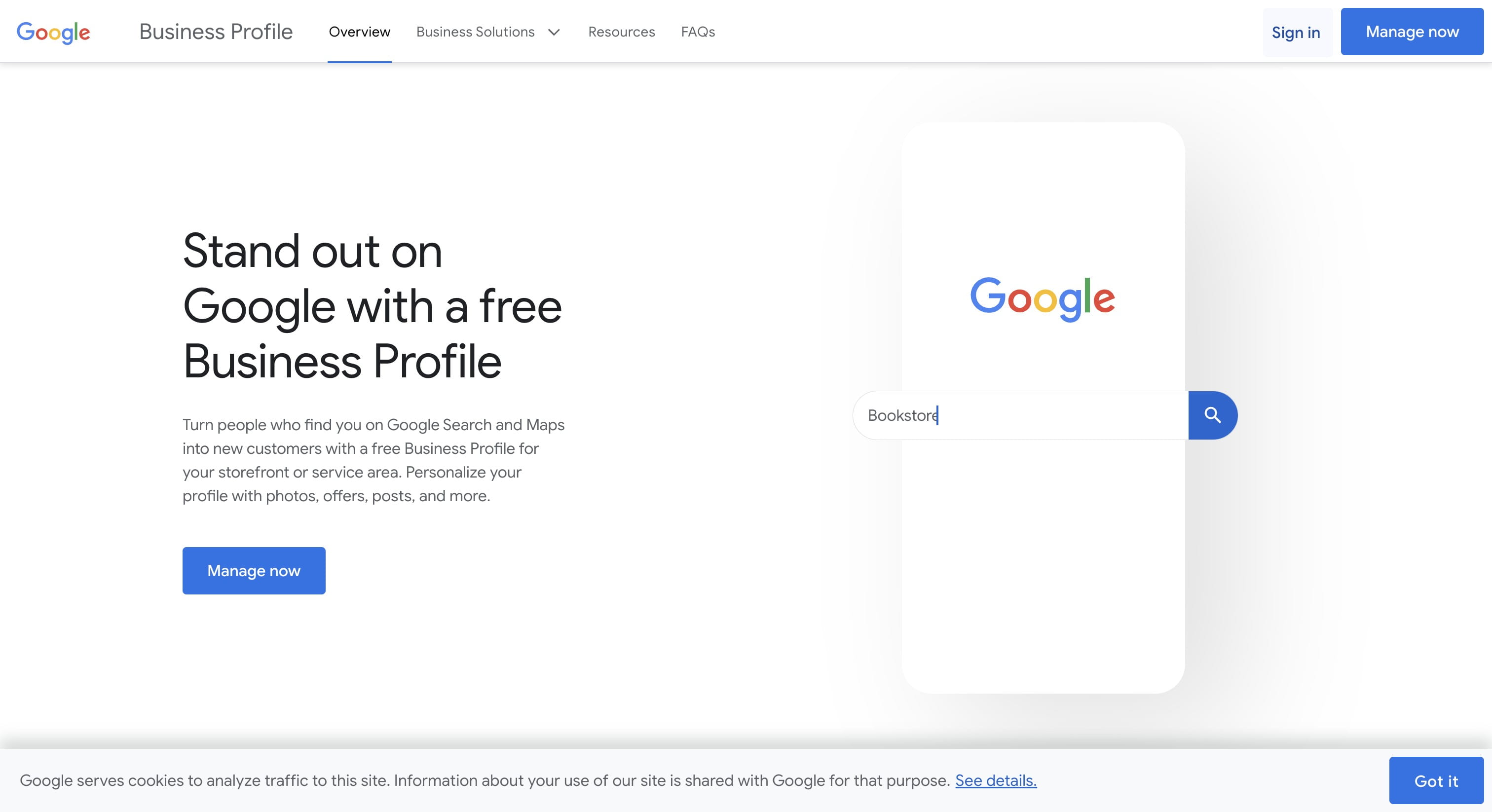
Navigate to your Google Business Profile: https://www.google.com/business/
Click on "Sign in" and log into your business profile.

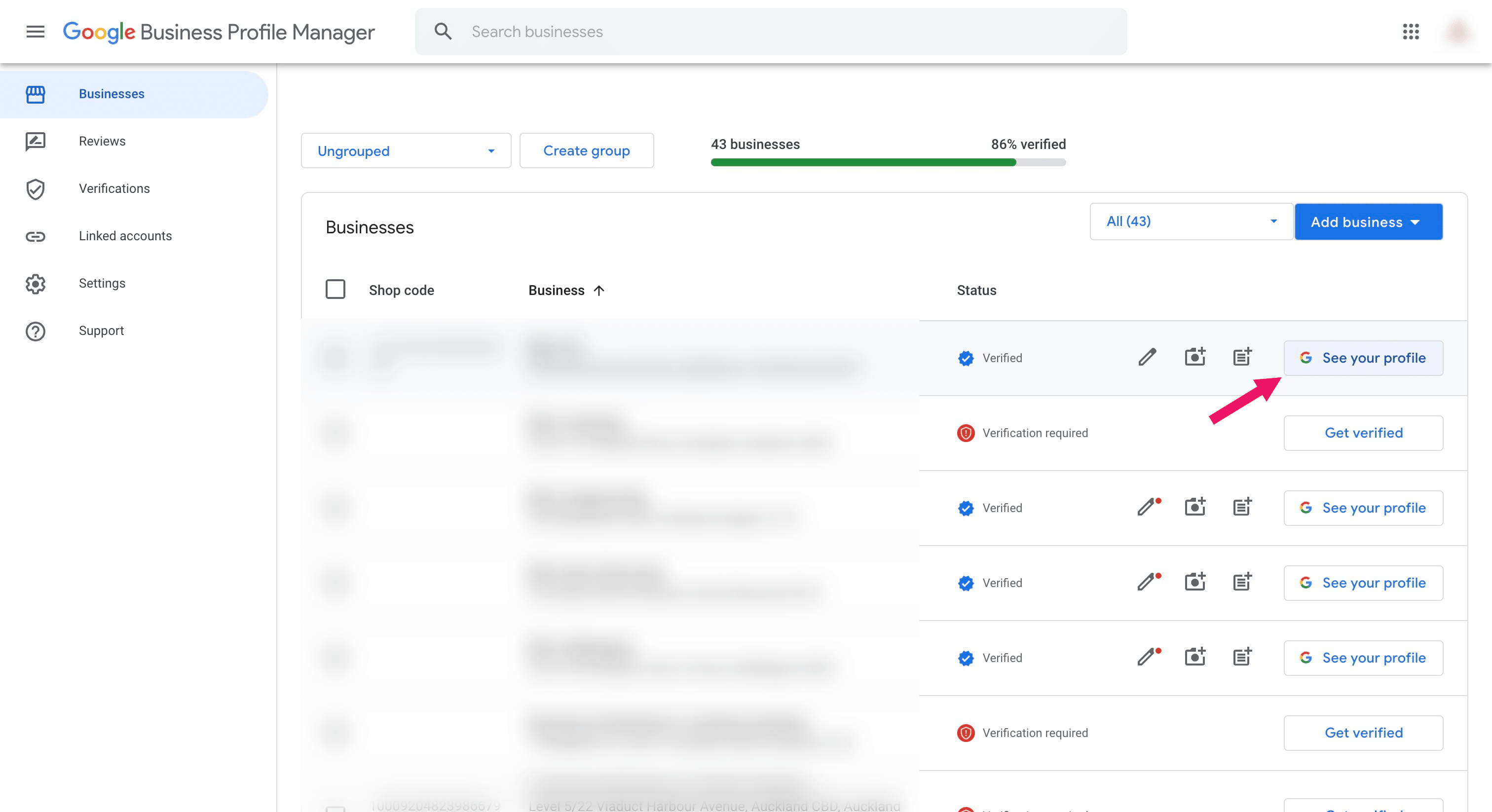
Click on "See your profile"
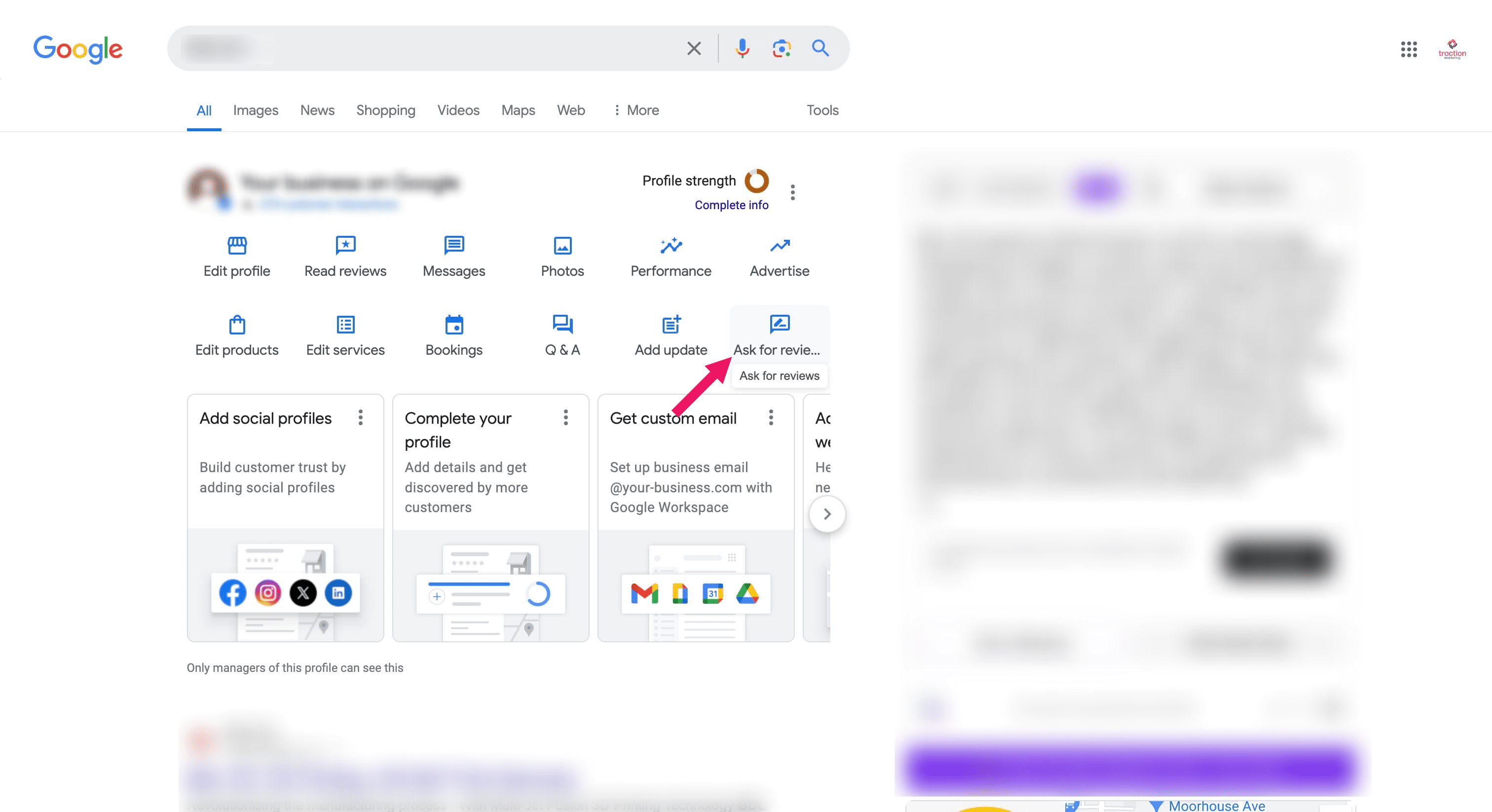
Click on "Ask for reviews"
Copy the "Review Link" from Google
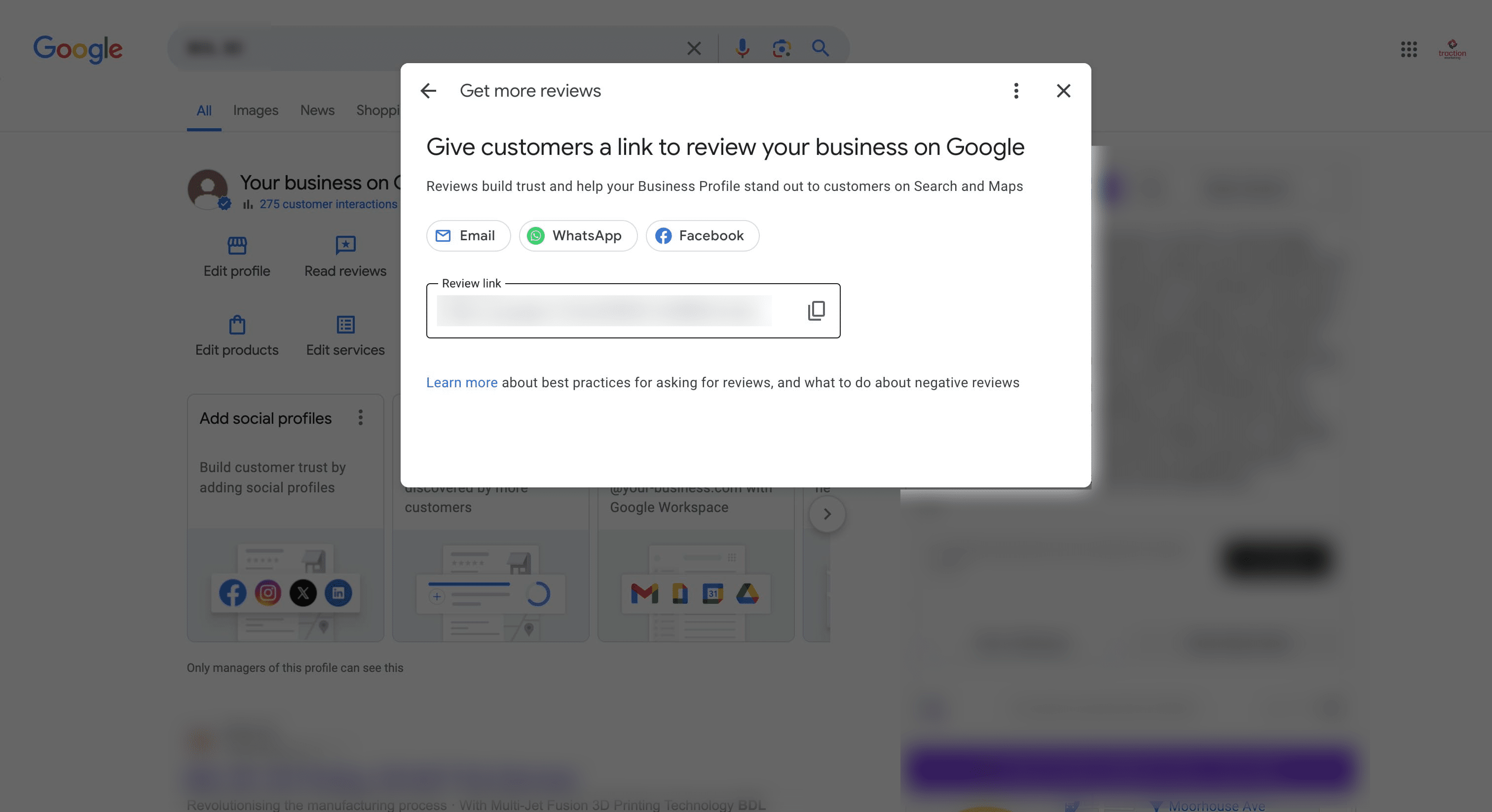
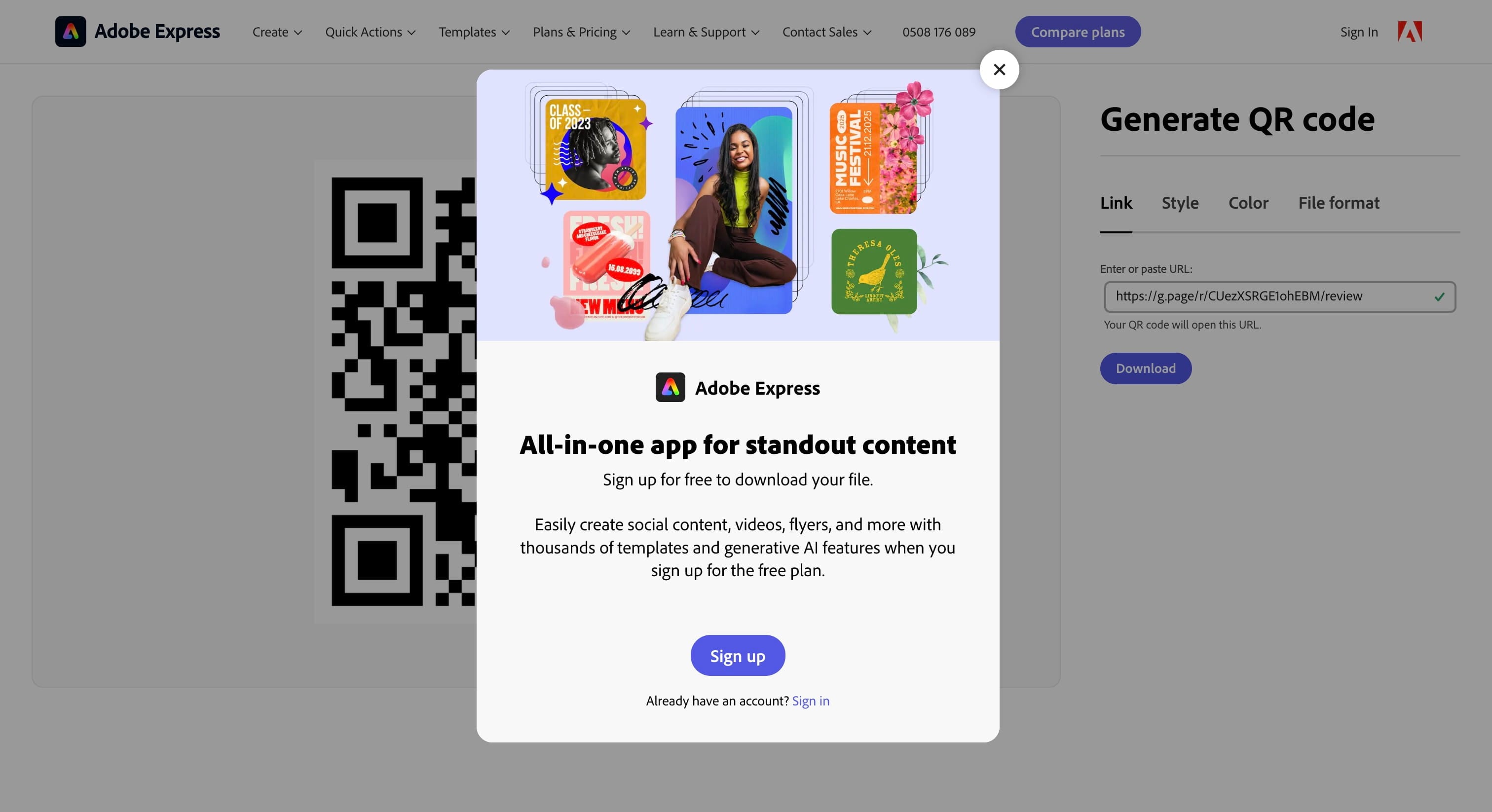
Navigate to Adobe's Free QR Code Generator website. Then click "Create now"
. Then click "Create now"](https://assets.guidejar.com/uploads/0f73082b-895b-46f5-b894-ca9b4c527b27/HHJ98SzsRqdSdgVtF855aPtSh3Y2/5e17b474-c636-4d4a-95c4-e72090298835/1720686643987.jpeg)
Paste your Google Review Request link and click on "Download"
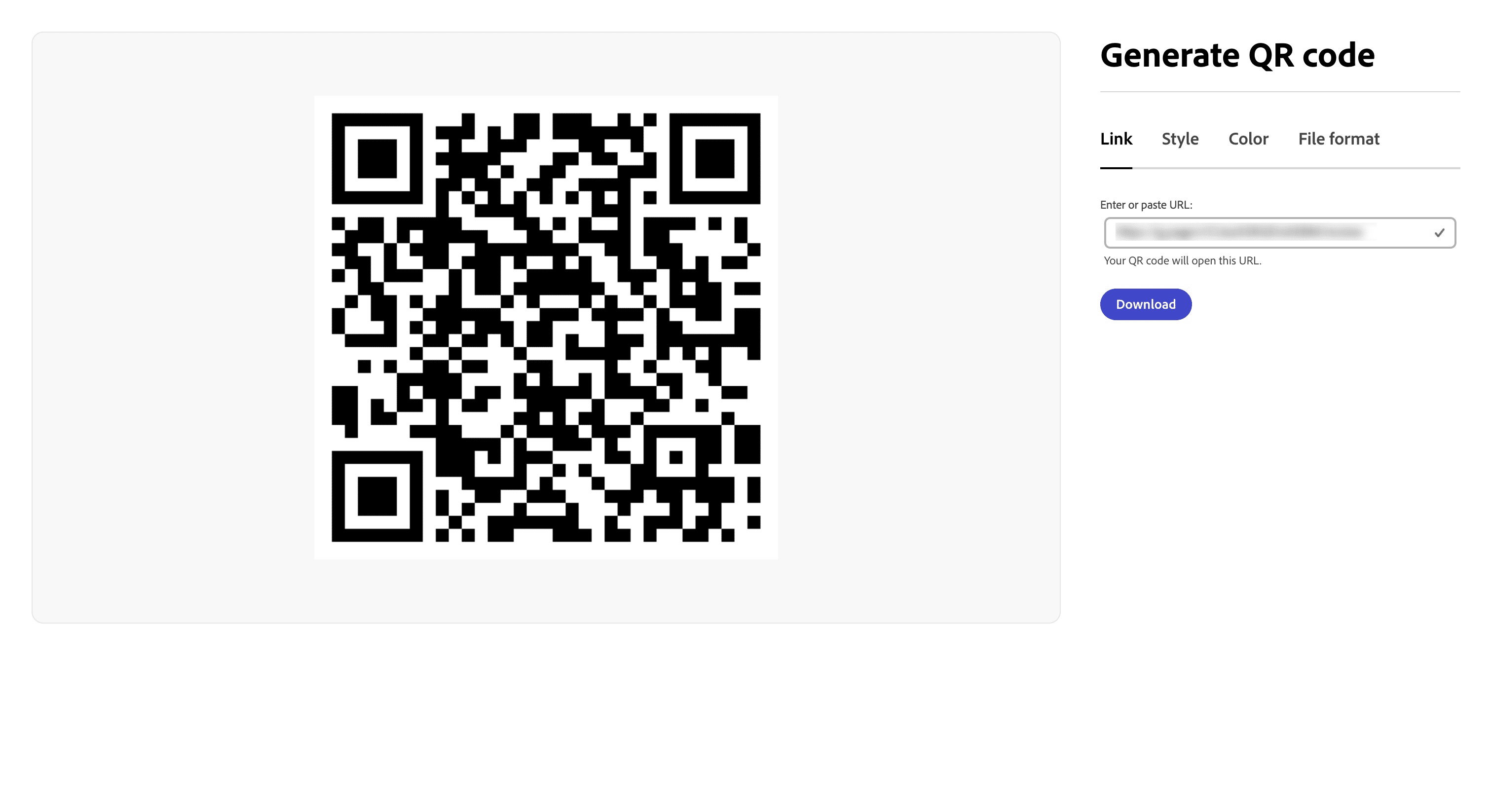
If you don't want to sign up, you don't have to. You can simply just screenshot the QR Code that Adobe Express generated. However, I do recommend signing up and downloading a high quality SVG file so that you can resize the QR code to whatever size you need while retaining image quality.
Sign up for a free account with Adobe Express to download your QR code in PNG, SVG, or JPG format.